

How to Cancel Crunchyroll Subscription: The Complete 2026 Guide (Every Device, Every Method)
You set up a free trial during the Jujutsu Kaisen Season 3 hype. You told yourself you’d cancel before the billing hit and even searched for How to Cancel Crunchyroll Subscription guides online. Then life happened. Three months later, you’re staring at a bank statement and seeing a charge you forgot was even there.
I’ve been there. Most anime fans have.
Here’s the thing nobody tells you upfront: cancelling Crunchyroll is not as straightforward as it looks. The method you need depends entirely on where you originally signed up and if you go to the wrong place, you’ll think you’ve cancelled when you haven’t. That’s the mistake that costs people real money.
As of February 2026, Crunchyroll raised prices across all U.S. tiers. Fan jumped from $7.99 to $9.99 per month, Mega Fan from $11.99 to $13.99, and Ultimate Fan from $15.99 to $17.99. That’s up to $192 a year for a subscription you might not even be actively using. If you’re done, let’s get you out cleanly, no surprise charges, no partial billing confusion, no endless support queues.
This guide covers every single cancellation method: web browser, iPhone, Android, Roku, PlayStation, Xbox, PayPal, and Amazon. I’ll also cover timing strategy (this part matters more than people think), what actually happens to your account after you cancel, and the refund reality Crunchyroll doesn’t advertise loudly.
The First Thing You Need to Figure Out: Where Did You Subscribe?
Before you do anything else, find out which platform is actually billing you. This single step saves hours of frustration. If you cancel through Crunchyroll’s website but your billing runs through Apple, you’re still getting charged.
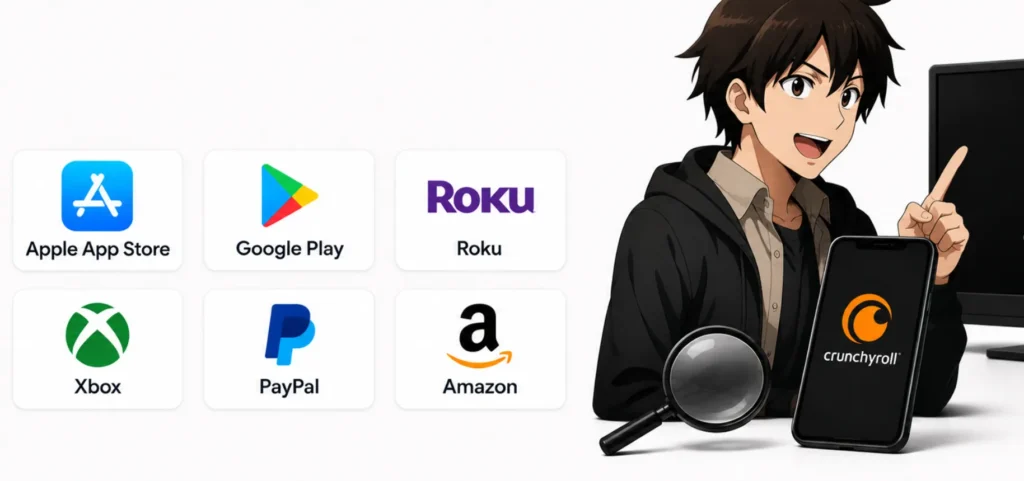
Check your email for the original Crunchyroll confirmation. The billing source is listed there. Alternatively, log in to crunchyroll.com, click your profile icon, go to Settings, then Membership Info. If you see a message saying your subscription is made via iTunes or Google, you need to cancel through the Crunchyroll app or your device’s subscription settings.
Write down your source before moving forward. Crunchyroll itself, Apple App Store, Google Play, Roku, PlayStation, Xbox, Amazon Prime Video each one has a completely different cancellation path.
How to Cancel Crunchyroll on a Web Browser (Direct Billing)
This method works if you signed up directly on crunchyroll.com using a credit card or PayPal. It takes under three minutes and is the most reliable path when it applies.
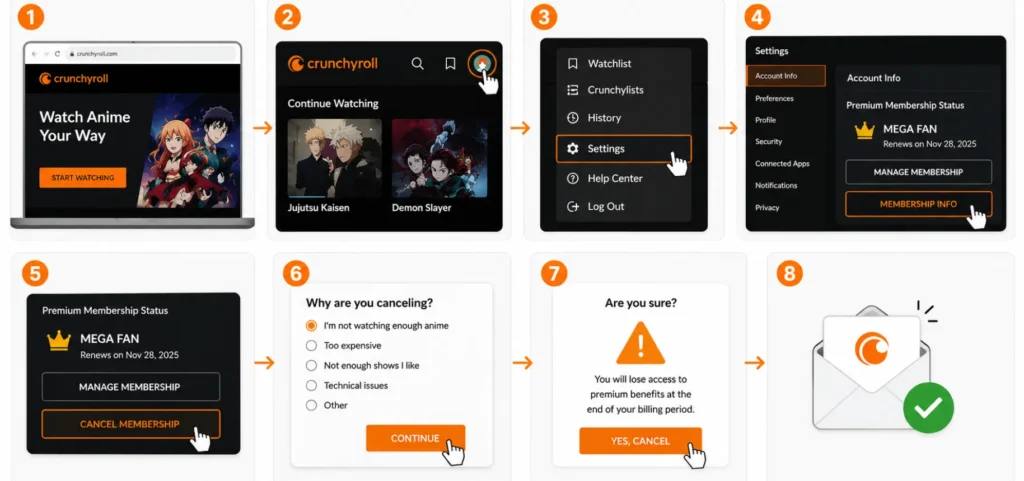
Here’s the exact process:
- Open crunchyroll.com and log in to your account.
- Click the profile icon in the top-right corner of the page.
- Select Settings from the dropdown menu.
- Look for Premium Membership Status or Membership Info usually on the right side under Account Info.
- Click Cancel Membership.
- You’ll hit a survey screen asking why you’re leaving. Select any reason and continue.
- Keep clicking through the confirmation screens Crunchyroll uses a few “Are you sure?” prompts. Don’t stop until you see a final cancellation confirmation.
- Check your email for a cancellation confirmation message.
Crunchyroll operates on a strict no-refund policy for partial months. When you cancel, your premium access continues until the end of your current billing cycle. So if you’re billed on the 15th and you cancel on the 16th, you still have premium access for roughly 29 more days. You’re not losing what you paid for.
One honest confession: I once spent 20 minutes thinking I had cancelled when I was actually stuck on a loop back to the survey page. If the page reloads without a confirmation message, you haven’t completed the cancellation. The final screen should explicitly say your membership has been cancelled.
How to Cancel Crunchyroll on iPhone or iPad (Apple/iOS)
If you subscribed through the Crunchyroll iOS app, your billing runs through Apple not Crunchyroll directly. You must cancel through your Apple ID settings, not the Crunchyroll website.
Method 1: Through your iPhone Settings
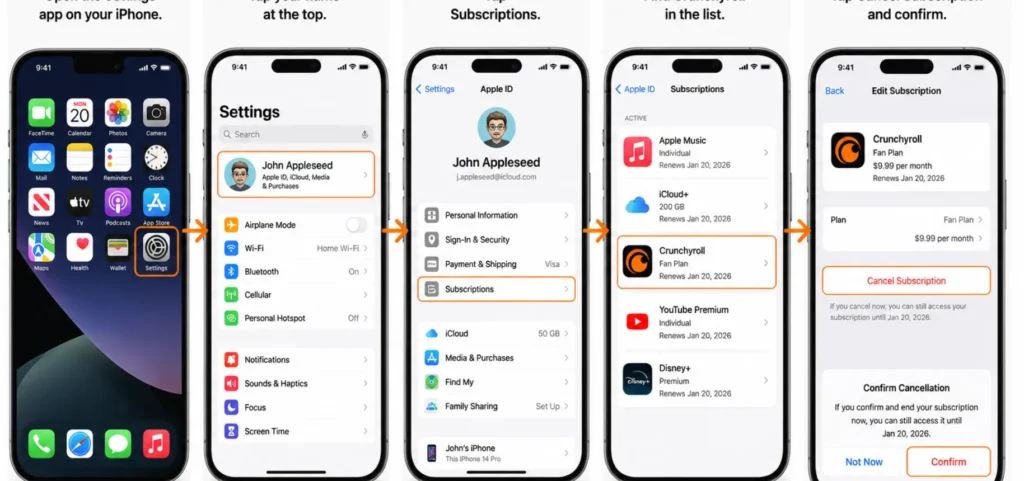
- Open the Settings app on your iPhone.
- Tap your name at the top.
- Tap Subscriptions.
- Find Crunchyroll in the list.
- Tap Cancel Subscription and confirm.
Method 2: Through the Crunchyroll app
Open the Crunchyroll app and tap Account, then Membership, then Manage. This will take you directly to the App Store, where you can cancel.
The important detail here: if you don’t see a Manage option in the Crunchyroll app, it means you didn’t subscribe through Apple. Go back, check your billing source, and use a different method. A lot of cancelled subscription complaints on Reddit come from people who used Method 1 but had Google Play billing or vice versa.
How to Cancel Crunchyroll on Android (Google Play)
Android subscribers pay through Google Play, so the cancellation lives in your Google account, not in the Crunchyroll app itself.
- Open the Google Play Store app on your Android device.
- Tap your profile icon in the top-right corner.
- Select Payments & Subscriptions, then Subscriptions.
- Find Crunchyroll and tap Cancel Subscription.
- Follow the prompts to confirm.
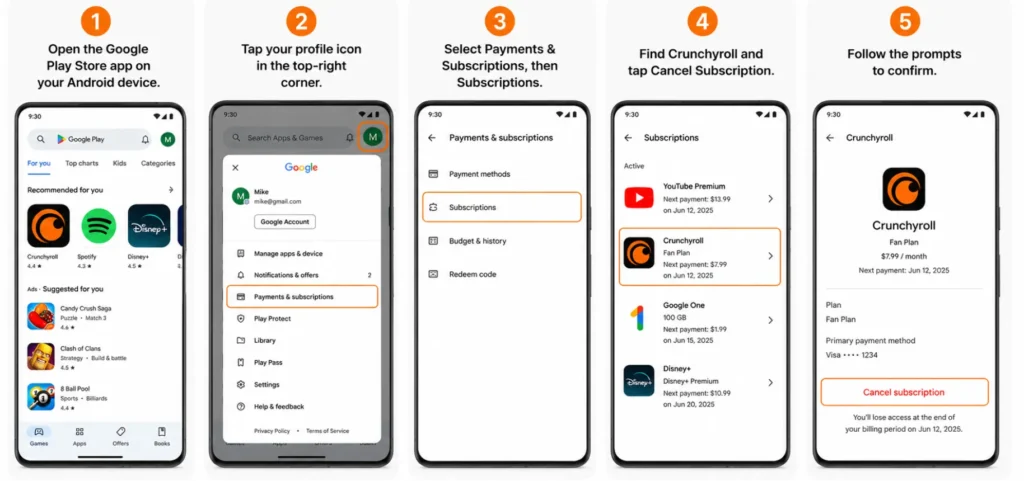
Alternatively, you can do this from any web browser by visiting play.google.com/store/account/subscriptions, logging in with your Google account, and cancelling from there.
One thing worth knowing: after cancellation through Google Play, Crunchyroll’s app may still show your account as “active” until the billing period ends. That’s normal. It doesn’t mean the cancellation failed. Your subscription simply runs out of its remaining paid days.
How to Cancel Crunchyroll on Roku
Roku handles its own billing when you subscribe through The Roku Channel. Crunchyroll’s website doesn’t offer cancellation options; Roku owns that relationship entirely.
Two ways to do this:
On your Roku device:
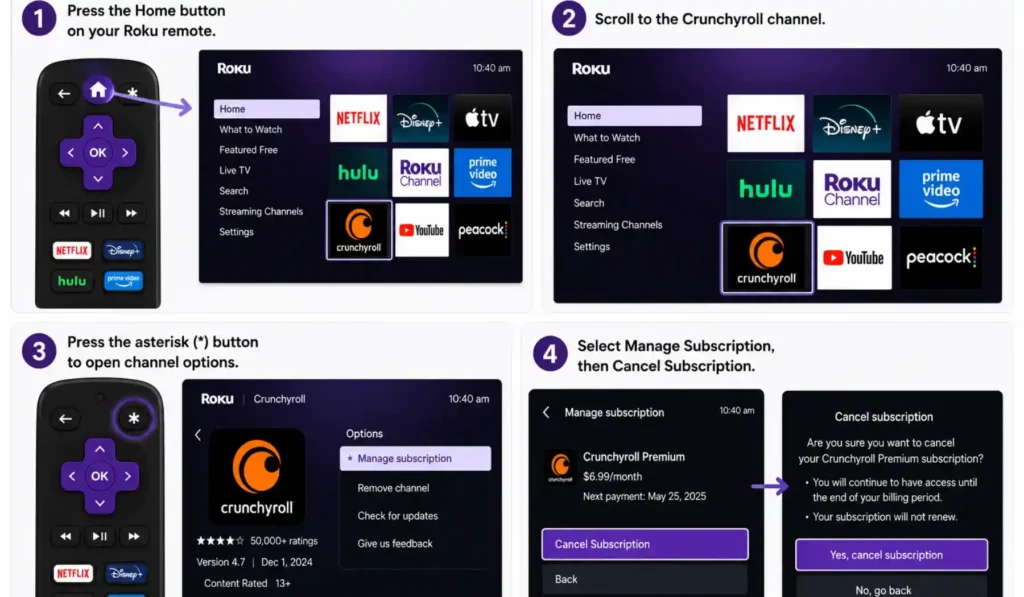
- Press the Home button on your Roku remote.
- Scroll to the Crunchyroll channel.
- Press the asterisk (*) button to open channel options.
- Select Manage Subscription, then Cancel Subscription.
Online through my.roku.com:
Navigate to your account on my.roku.com, select Manage your subscriptions, spot Crunchyroll, and unsubscribe.
I recommend the online method if you’re not near your Roku device. It’s faster, and you get an email confirmation immediately.
How to Cancel Crunchyroll on PlayStation or Xbox
Gaming console subscriptions are managed through PlayStation Network or Xbox, not through Crunchyroll’s own system. Many console subscribers don’t realise this until they’re confused by continued charges after a website cancellation.
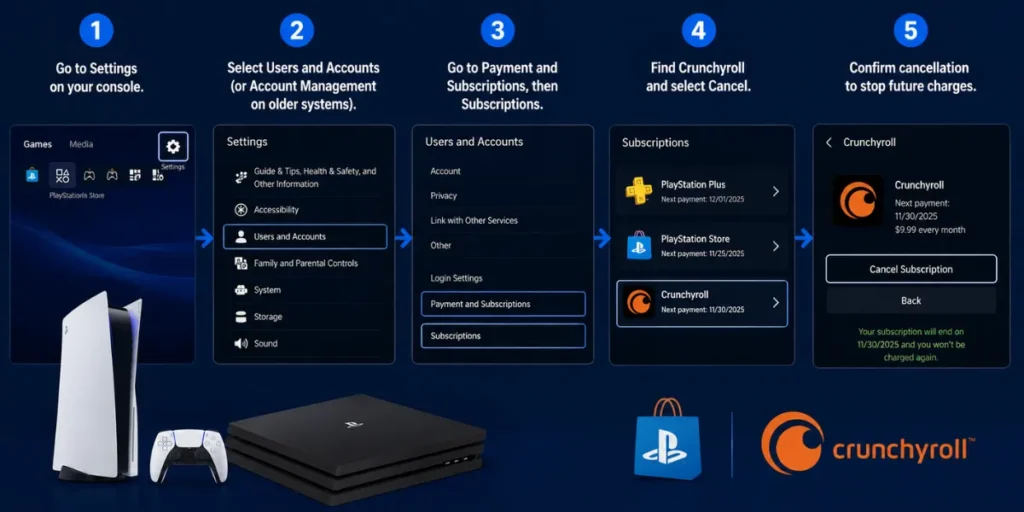
For PlayStation (PS4/PS5):
- Go to Settings on your console.
- Select Users and Accounts (or Account Management on older systems).
- Go to Payment and Subscriptions, then Subscriptions.
- Find Crunchyroll and select Cancel.
Alternatively, log in to account.sonyentertainmentnetwork.com on a browser, go to Subscription, and cancel from there.
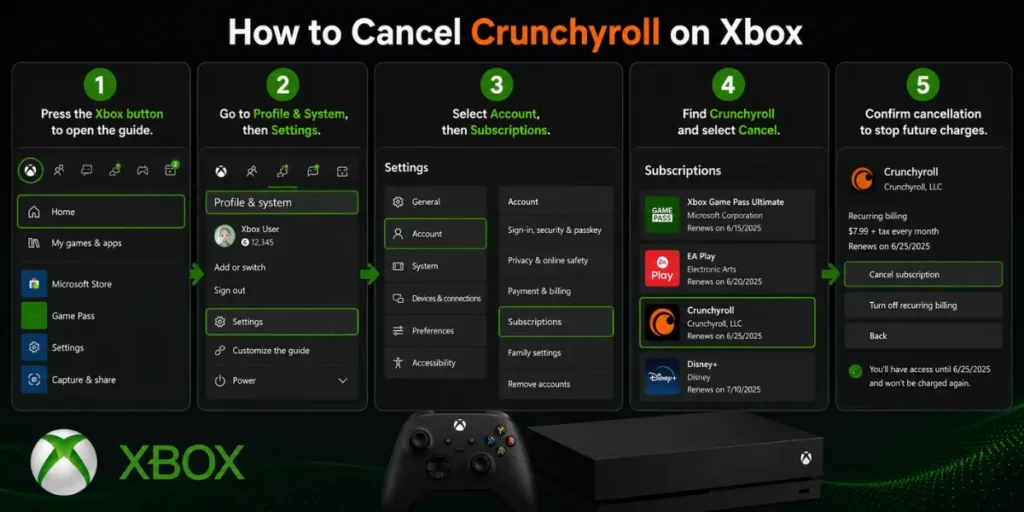
For Xbox:
- Press the Xbox button to open the guide.
- Go to Profile & System, then Settings.
- Select Account, then Subscriptions.
- Find Crunchyroll and select Cancel.
Or visit account.microsoft.com/services on any browser, find Crunchyroll under your subscriptions, and cancel online.
How to Cancel Crunchyroll Through PayPal
If you pay for your direct Crunchyroll subscription using PayPal, you have an extra cancellation pathway directly through PayPal’s automatic payments settings.
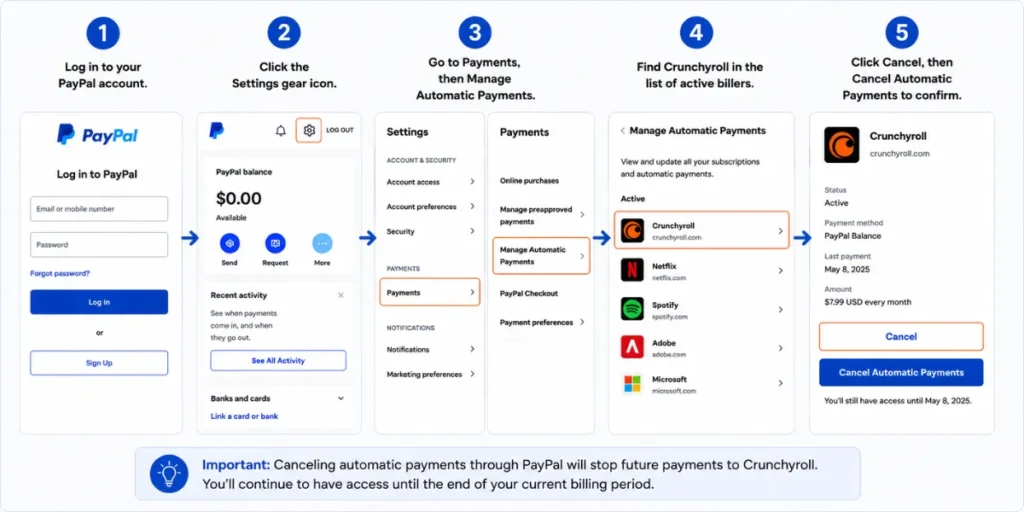
This method is a smart backup if the Crunchyroll website cancellation isn’t working for you:
- Log in to your PayPal account.
- Click the Settings gear icon.
- Go to Payments, then Manage Automatic Payments.
- Find Crunchyroll in the list of active billers.
- Click Cancel, then Cancel Automatic Payments to confirm.
Important nuance: cancelling through PayPal stops future charges but does not formally cancel your Crunchyroll membership the same way the website method does. Your account remains active until the billing period ends, but you’re protected from future charges. For a clean account cancellation record, do both cancel through PayPal and through Crunchyroll’s website.
The Billing Timing Strategy (Most People Get This Wrong)
The single most important thing about cancelling Crunchyroll is timing. Cancel more than 24 hours before your next billing date to guarantee you won’t get charged for another month.
Users on Trustpilot frequently report that cancelling too close to the renewal date less than 24 hours before can result in an unwanted charge. Crunchyroll’s billing system processes renewals slightly ahead of the technical renewal date, so cutting it close is genuinely risky.
The smart play: find your exact renewal date in your account’s Membership Info section, and cancel at least two to three days before it. You’ll retain access to your premium membership until the renewal date, so you’re not losing anything.
If you’re on an annual plan, the same principle applies but the stakes are higher. Mark your renewal date in your phone’s calendar. One day of carelessness on an annual plan means an extra $99 to $215 charge.
What Happens to Your Account After You Cancel?
Your account converts to a free (or now limited) state at the end of your billing period. You don’t lose your profile, watchlist, or watch history; those stay intact.
Crunchyroll discontinued its free plan at the end of 2025. This is a significant change from how cancellations worked before. Previously, your account would drop to a free ad-supported tier and you’d still have limited access to older content. Now, cancelling means your access to the full library ends when your billing period closes.
Your profile, watch history, and saved queue remain in the system. If you resubscribe later, you pick up right where you left off. Nothing is deleted.
What you lose immediately after your billing period ends: ad-free viewing, simulcast episodes, offline downloads (Mega Fan/Ultimate Fan), concurrent streams, and access to newer catalog additions.
What you keep permanently: your account login, profile settings, and watch history.
Crunchyroll’s Refund Policy: The Honest Truth
Crunchyroll does not offer prorated refunds for cancellations mid-billing cycle. If you cancel on day two of your monthly subscription, you paid for the full month and that’s what you get access to until the end of that period.
Crunchyroll operates on a strict no-refund policy for partial months. This policy applies to all subscription tiers Fan, Mega Fan, and Ultimate Fan.
The one exception worth knowing: if you were charged in error, duplicate charge, charge after a confirmed cancellation, or charge during a system error , Crunchyroll support has historically resolved these cases. Document everything. Screenshot your cancellation confirmation and keep that email. If a charge appears after a confirmed cancellation, that email is your evidence.
For free trial cancellations: cancel before the trial ends and you pay nothing. Free trial cancellation follows the same platform-specific method as regular cancellations.
How to Pause Instead of Cancel (If You’re On the Fence)
Crunchyroll does not currently offer a native pause or freeze feature for subscriptions the way some other services do. Your options are cancel and resubscribe, or stay subscribed.
If you want to manage costs without fully cancelling, the annual plan is worth considering. Crunchyroll offered a limited-time opportunity for members to upgrade to the Fan annual plan for $66.99 a year, which reduces the effective monthly cost to $5.58 compared to monthly billing. For committed viewers, the math makes sense.
If you’re leaving for a few months because a favourite show just finished airing and nothing else grabs you, just cancel. Your account and watch history stay saved. Resubscribing takes two minutes. There is no penalty for rejoining, and Crunchyroll sometimes offers returning subscriber discounts.
How to Confirm Your Cancellation Actually Worked
Never assume cancellation went through. Always look for an explicit confirmation screen and a confirmation email.
After completing the cancellation steps on any platform, you should:
- See a confirmation screen or message stating your subscription is cancelled.
- Receive an email from Crunchyroll (or Apple, Google, Roku, etc.) confirming the cancellation.
- Return to your Membership Info page on Crunchyroll and verify that it shows a cancellation or end date, not an active renewal status.
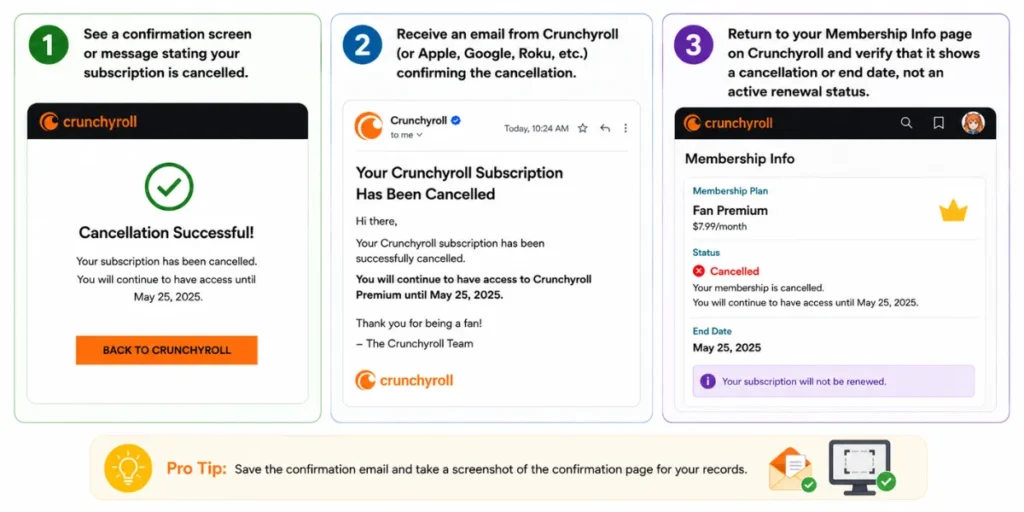
If you don’t receive a confirmation email within an hour, check your spam folder. If there’s still nothing, go back and verify your account status manually. A lot of “I cancelled but still got charged” situations come down to not completing all the confirmation screens.
FAQ: How to Cancel Crunchyroll Subscription
Conclusion
Cancelling Crunchyroll takes under five minutes once you know which platform to use. The number one mistake is going to the wrong place: people cancel on the website when their billing runs through Apple, or they cancel through Google Play when they sign up directly. Check your original confirmation email, match it to the right method in this guide, and complete every confirmation screen.
The February 2026 price increase, the first for the Fan tier since 2019, is a legitimate reason to reassess whether the subscription makes sense for your current anime watching habits. If you’re in a heavy watching phase, the annual Fan plan at $66.99 is the smartest money. If you’ve finished your current shows and don’t have anything queued up, just cancel. Your account and watch history will be waiting if you come back.
The most important thing: don’t leave without that cancellation confirmation email. That single piece of documentation protects you from every billing dispute that might come up down the road.
What platform did you use to subscribe? Drop it in the comments if you’re running into a specific issue the steps above didn’t solve, I’ll help you work through it.


