

How to Make Crunchyroll English: Complete Guide for Every Device in 2026
You just sat down to watch the latest episode of Jujutsu Kaisen. You hit play. Then it happens that the whole interface is in Japanese. The subtitles aren’t loading properly. The English dub you thought existed for this series mysteriously vanished from the seasons menu. You’re staring at your screen, wondering if this anime streaming platform is deliberately trying to frustrate you.
I’ve been there. Three times in one week. That moment when you realize that Crunchyroll doesn’t automatically set everything to English the way Netflix does, and now you’re lost in menus, wondering which button actually controls subtitles versus audio versus the interface language itself.
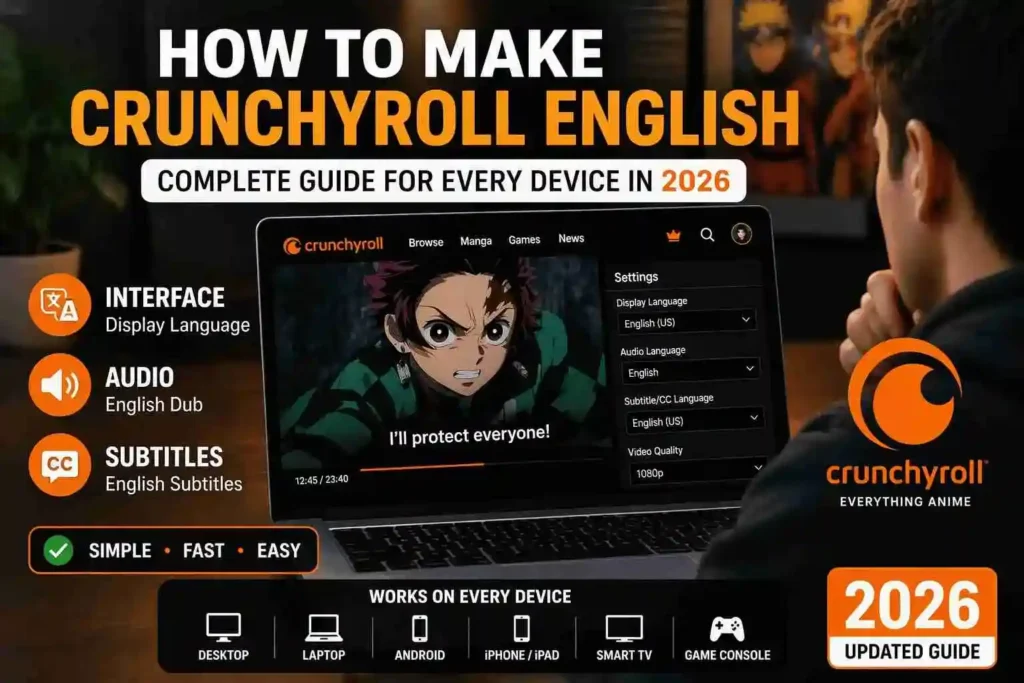
Here’s what most guides won’t tell you: there isn’t one “make Crunchyroll English” button. Instead, there are three completely separate settings you need to adjust: display language, audio language, and subtitle language. They don’t talk to each other. Change one, and the others stay exactly where you left them. That’s the design flaw nobody mentions.
By the end of this guide, you’ll understand exactly which setting controls what, how to adjust each one on your specific device, what to do when English subtitles or dubs mysteriously disappear, and why Crunchyroll’s interface is frustratingly different from every other streaming platform you’ve ever used.
The Three Language Settings You Need to Know (And Why They’re Separate)
Before we dive into the step-by-step instructions, let me explain the fundamental confusion that trips up most new Crunchyroll users.
Crunchyroll has three independent language settings working against each other. Changing your display language to English doesn’t automatically change your subtitles to English. Setting English as your audio preference doesn’t update the interface. This architectural choice drives people absolutely insane.
The three settings are:
Display Language controls the menus, buttons, and interface text you see navigating Crunchyroll. This is what language you see when you’re browsing shows, accessing settings, and using the app generally.
Audio Language determines what voice actors you hear. Do you want the original Japanese voice actors or English dubbed voice actors? This is the audio language selection.
Subtitle Language controls the text at the bottom of the screen. This operates independently from audio. You can watch Japanese audio with English subtitles. You can watch English dub with no subtitles at all.
Most streaming platforms synchronize these three. Change one and the others follow automatically. Crunchyroll said no. Each one operates on its own island.
This design isn’t malicious; it’s actually useful for people learning Japanese or who want the original Japanese audio with English subtitles. But it creates genuine friction for casual viewers who just want “English mode” and nothing else.
How to Change Crunchyroll to English on Desktop (Web Browser)
This is the most straightforward approach because you have the most control on the web version.
Navigate to crunchyroll.com and log into your account if you haven’t already. Look at the top right corner of the page. You’ll see your profile picture. Click it.
A dropdown menu appears. Select “Account” or “My Account”; the exact wording varies by region.
On the next page, look for “Preferences” in the left sidebar. Click it.
Inside Preferences, you’ll see three separate sections that control your language experience:
For Display Language: At the top, you’ll see “Display Language” with a dropdown menu. This controls the interface text, everything you read, and navigating the site. Select English (US) or English (UK) depending on your preference.
For Audio Language: Below Display Language, find “Audio Language” with its own dropdown menu. Select English if you want English dubs. Select Japanese if you prefer the original voice actors.
For Subtitle Language: Below that, you’ll find “Subtitle/CC Language.” Choose English (US) or your preferred subtitle language.
After making changes, scroll to the bottom and click Save. The changes apply immediately, though you might need to refresh the page to see the interface language update.
Here’s a critical detail: Some anime series list dubbed and subtitled versions as completely separate “seasons.” You might see Demon Slayer Season 1 (Subtitled) and Demon Slayer Season 1 (Dubbed) as two different entries. This frustrating design means you might need to manually switch between seasons to access the English dub, rather than having a simple audio toggle.
Crunchyroll acknowledged this mess and said they’re “working on rolling out a new, seamless way to switch audio across the entire Crunchyroll library.” Translation: this fundamental problem still exists and they haven’t fixed it yet.
How to Change Crunchyroll to English on iOS (iPhone/iPad)
Mobile apps are more limited than the web version. Unfortunately, you can’t directly change the display language within the Crunchyroll app on iPhone.
However, you have one workaround if you’re running iOS 13 or later. Apple added the ability to set individual app languages through Settings.
Open your iPhone’s Settings app. Navigate to General → Language & Region. Select Add Language and choose English from the list.
Now go back to Settings and scroll down until you find Crunchyroll specifically. Tap it.
You’ll see a language toggle. Select English.
This changes the interface language for just the Crunchyroll app while keeping your device in its original language. After you make this change, force-close the Crunchyroll app completely and reopen it.
For audio and subtitle languages, those are handled inside the Crunchyroll app itself.
Tap your profile icon at the bottom right of the Crunchyroll app. From the profile page, select the settings gear icon. Inside Settings, look for Preferences.
Find “Audio Language” and “Subtitle/CC Language” and select English for both.
The challenge here: the iOS app has a different interface than the web version. Menu items appear in slightly different places. If you can’t find these options, the web version through your browser gives you more reliable access to all settings.
How to Change Crunchyroll to English on Android
Android users face similar limitations to iOS you can’t change the display language directly within the app.
Instead, go to your Android device’s Settings app. Look for Language & Input (exact naming varies by manufacturer). Find Languages or Language and Input.
Select “Add a Language” and choose English.
Select English as your device default language. Your Crunchyroll app will automatically use your phone’s system language.
For audio and subtitle languages inside the Crunchyroll app: Tap your profile icon at the bottom right. Select Settings → Preferences.
Look for “Audio Language” and “Subtitle/CC Language” dropdowns. Select English for both.
Android users frequently report that these settings stick better if you restart the Crunchyroll app after making changes. Close it completely, wait 10 seconds, then reopen it.
How to Change Crunchyroll to English on TV Devices (Roku, Apple TV, Fire TV)
TV devices are different animals entirely. The process varies dramatically depending on what platform you’re using.
Apple TV: Launch the Crunchyroll app. Select the Settings option from the menu. Below the Sign Out option, you’ll see Subtitle Language. Select it and choose your language from the list. There’s a separate Preferences menu for Audio Language as well.
Android TV: Launch Crunchyroll. Press the Menu button (usually top left on your remote). You’ll see language and subtitle options. Select them to change your preferences.
Roku: Launch Crunchyroll. Navigate to Settings (the gear icon). Inside Settings, you’ll find Audio and Subtitle Language options. Select English for both.
Fire TV: Open Crunchyroll. Select Settings from the menu. Find Audio Language and Subtitle Language options and adjust them.
A recurring issue: some people find these TV interface options confusing because the menus differ slightly between platforms. If you can’t find the settings, the easiest solution is to log into Crunchyroll through the web browser on a computer, adjust all your default settings there, then launch the TV app. Your settings sync automatically.
The English Dub Problem: Why Your Favorite Show Doesn’t Have One
Here’s where legitimate frustration enters the chat.
Not every anime on Crunchyroll has an English dub. Crunchyroll didn’t start as a dubbing company they were always subtitles-first. Funimation handled the dubs. When Sony acquired Funimation in 2018 and merged it with Crunchyroll in 2023, the dub library expanded significantly. Crunchyroll now hosts over 190 series with English dubs.
But that’s still a fraction of their 1,200+ total titles.
This means some shows you want to watch genuinely don’t have English voice acting available. You have two options: watch with Japanese audio and English subtitles, or find the show on a different platform.
To check whether a show has an English dub before you start watching: Navigate to the show’s detail page. Scroll to More Details section. You’ll see available languages for both Audio and Subtitles listed separately.
Finding Dubbed Content When English Versions Seem to Disappear
Here’s another maddening scenario: you watched a show’s English dub yesterday. You go back to watch episode 3 today and the dubbed version vanished from the seasons menu.
This happens because Crunchyroll lists dubbed versions as separate “seasons” in many cases. So Demon Slayer Season 1 (Subtitled) and Demon Slayer Season 1 (English Dub) appear as two completely different entries.
You need to search more carefully. Try these approaches:
Navigate to the show’s main page. Look at the seasons dropdown menu. Often dubbed versions are listed separately; you might see “(Dub)” or “(English)” in parentheses after the season title.
If that fails, use Crunchyroll’s built-in filter. Go to Categories → Browse All. Click the Filter button. Under Language, select “Dubbed.” This shows you only titles with English voice acting available.
On mobile, tap Browse, then the Filter icon (top right), then select “Dubbed” under Language section.
This filter doesn’t exist on the desktop web browser version, which makes finding dubs more difficult there. Mobile users have a legitimate advantage here.
When Subtitles Disappear or Don’t Match the Dub
Another common problem: you’re watching an English-dubbed episode but don’t see subtitles available.
This is actually intentional, though infuriating. Crunchyroll’s logic is that if the audio is already in English, you don’t need subtitles. Makes sense in theory. In practice, people want closed captions for accessibility or for watching in quiet situations.
Some dubbed episodes do include closed captions. If you’re on a dubbed episode and see an “English CC” option, that’s your solution.
If closed captions used to appear on a dubbed episode and recently disappeared, don’t panic. This is usually a temporary delivery issue on Crunchyroll’s backend. They’ll reappear automatically within days.
For subtitled episodes (original Japanese audio), English subtitles almost always appear. But availability depends on licensing agreements in your region. Some shows might have English subtitles available in North America but not Europe, or vice versa.
Clearing Cache and Fixing Stubborn Language Settings
Sometimes after changing language settings, Crunchyroll refuses to actually apply those changes.
The nuclear option is clearing your cache and data.
On Web: In your browser settings, find the option to clear browsing data, cookies, and cache. Clear everything from “all time.” Log out of Crunchyroll completely. Close the browser. Reopen it. Log back into Crunchyroll.
On Mobile iOS: Open Settings → General → iPhone Storage. Find Crunchyroll in the list. Tap it, then select “Offload App” (not Delete). Wait 10 seconds. Go back and reinstall it.
On Mobile Android: Open Settings → Applications → Crunchyroll. Select “Storage.” Tap Clear Cache (not Clear Data, which removes your login). Open Crunchyroll again.
On TV Apps: Most TV app stores have an option to Clear Cache directly from the app details page in your device settings. Use that.
After clearing cache, log back in and immediately navigate to your Language Preferences. Set your preferred languages again. Wait for the settings to save completely before closing the app.
In 95% of cases, this solves the problem. The remaining 5% represents legitimate bugs that require contacting Crunchyroll support.
Why Browser Language Settings Matter
Your web browser’s language settings influence Crunchyroll’s behavior.
If your browser is set to Japanese, Crunchyroll might default to Japanese even if your account preferences say English.
To check your browser’s language settings:
Chrome: Click the three-dot menu → Settings → Languages. Make sure English is at the top of the list.
Firefox: Open Firefox Preferences → Language. Ensure English is your preferred language.
Safari: Go to System Settings (Mac) or Settings (iPhone) → Language & Region → Preferred Language, and ensure English is selected.
This typically affects the web version more than the mobile apps. But if you’re struggling to get Crunchyroll into English after trying everything else, check your browser language settings first.
Platform-Specific Quirks You Need to Know
Desktop web version: Full control over all three language settings. Limited dub discovery (no filter option).
iOS: Can’t change display language directly in-app. Audio and subtitle preferences are buried deeper in menus than on web.
Android: Similar limitations to iOS. Settings sync inconsistently between devices sometimes.
Smart TV apps: Most limited interface. Minimal language options visible. Best approach is to set everything on web, then use the TV app.
When to Contact Crunchyroll Support
Most language issues solve themselves with the methods above. Contact support when:
Your language hasn’t changed after clearing cache and relogging multiple times.
You notice subtitles saying completely different things than the dialogue (translation errors happen, and Crunchyroll accepts reports).
A show previously available with English dub is now labeled subtitled-only, but you purchased episodes in dubbed format.
You’re in a region where language options appear unavailable, but you believe they should be.
Crunchyroll’s support team is actually responsive to language-related issues. They can force-refresh your account settings or investigate regional licensing problems.
The Evolution of Crunchyroll’s Language Experience
Here’s the honest assessment: Crunchyroll’s language system feels outdated compared to Netflix, Disney+, or HBO Max.
This exists partly for historical reasons. Crunchyroll started as a subtitled anime platform while Funimation handled dubs. The merger happened relatively recently. They’re still integrating systems built on completely different architectures.
But it also reflects that anime fans are an unusual audience. Many genuinely prefer the flexibility to watch Japanese audio with English subtitles. That experience of original intent with reading comprehension is valuable for a specific audience.
The downside is that casual viewers get trapped in a confusing interface designed to serve niche preferences.
Crunchyroll has explicitly acknowledged these problems. They’re working on seamless audio switching. They’re improving dub discoverability. But these updates move slowly. If you need everything in English immediately and without friction, Crunchyroll isn’t optimized for that experience yet.
Final Word: Your Backup Plan
If you’ve tried everything above and still can’t get Crunchyroll into English mode consistently, consider this reality: you might not be the platform’s ideal user at this moment.
That’s not judgment. It’s just truth. Netflix optimizes for people who want simplicity. Crunchyroll optimizes for people who toggle between audio options. The platforms have different philosophies.
Your three options:
- Accept the friction as the cost of accessing Crunchyroll’s library.
- Use the web version exclusively, where you have most control over language settings.
- Explore alternatives that prioritize display language accessibility. Netflix, HBO Max, and Disney+ all have more intuitive language systems, though their anime libraries are smaller.
For most viewers, though, the methods in this guide solve 99% of language issues. Try them systematically, starting with your account preferences on the web version, then syncing those settings to your devices.
What specific language issue brought you here? Did the steps above solve your problem? Share what worked (or what still frustrates you) in the comments knowing which scenarios still trip people up helps other readers solve the exact same problems.


